App Service Plan Random Restarts

I’m hosting a real-time system that is very dependent on low latency throughput and I’m doing it on Azure. In hindsight this might not have been the best choice as you have no control over the PaaS services and only a shallow insight over the IaaS service that Azure offers. In hindsight, when you’re writing a real-time system, deploy it on an environment where you control everything.

Last week we were starting to get problems that the system would have these interruptions. Randomly it looked like the system would stop working for 1-2 minutes and then be back to normal. First we thought it was the network, but after diagnosis of the whole system, we found that the App Service Plan was restarting and this was causing the interruptions.

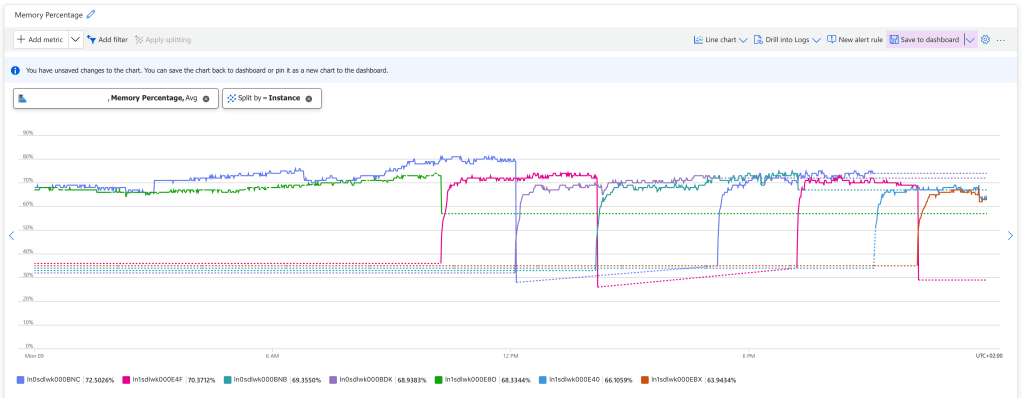
The memory graph shows when an instance drops, a new one is booting up.

There is no log of this, but you can see it if you watch the App Service Plan metrics, and split the Memory Percentage on instance. You can see that new instances starts up when old ones are killed. While the new instance is starting up, we drop connections and the real-time system stops working for 1-2 minutes.

In a normal system this wouldn’t be a problem, because all requests would move over to the instance that is being live, and the users wouldn’t be affected, but we’re working with web sockets and they cannot be load balanced like that. Once they’re established, they will need to be reconnected if the instance goes down.

So this was bad for us!

These kind of issues are hard to troubleshoot because Azure App Service Plan is PaaS. You don’t have access to all the logs needed, but I found this tool when you go into the Azure App Service and select Resource Health / Diagnose and solve problems and search for Web App Restarted.

There a lots of diagnose tools for Azure App Service if you know where to find them. This one shows web app restarts.

This confirms the issue but really doesn’t tell us why the instances are restarting. Asking Chat GPT for common reasons for App Service Instance restarts, I got the following list

  • App Crashes
  • Out of Memory
  • Application Initialization Failures
  • Scaling or App Service Plan Configuration
  • Health Check Failures
  • App Service Restarts (Scheduled or Manual)
  • Underlying Infrastructure Maintenance (by Azure)

The one that stood out to me was “Health Check Failures” so I went into the Health Check feature on my App Service and used “Troubleshoot” but it said everything was fine. So I checked the requests to my /health endpoint and it told a different story.

The health check is failing a couple of times per day and this seems to be the cause of the App Service instance restarts.

The health checks are fine 99.99% of the times, but those 0.01% flukes will cause the instance to be restarted. Azure App Service will consider that the instance is unhealthy and restart it.

To test my theory I turned off health checks on my Azure App Service, and the problem went away. After evaluating for 24 hours we had zero App Service Instance restarts.

When I turned off health checks on Azure App Service, to test my theory, the problems with the restarts disappeared.

The problem is confirmed, but why are health checks failing? Digging a little deeper I found the following error message

Result: Health check failed: Key Vault
Exception: System.Threading.Tasks.TaskCanceledException: A task was canceled.

In my health checks I check that the service has all the dependencies it needs to work. It cannot be healthy if Azure Key Vault is inaccessible. In this case Azure Key Vault would return an error 4 times during 24 hours, and this would cause the health check to fail and the instances to be rebooted.

Why would it fail? This is could be anything. Maybe Microsoft was making updates to Azure Key Vault. Maybe there was a short interruption to the network. It doesn’t really matter. What matters is that this check should not restart the App Service instances, because the restart is a bigger problem than Key Vault failing 4 checks out of 2880.

Liveness and Readiness

Health checks are a good thing. I wouldn’t want to run the service without them, but we cannot have them restarting the service every hour. So we need to fix this.

I know of the concept of liveness and readiness from working with Kubernetes. I don’t know if this is a Kubernetes thing, but that is where I learned the concept.

  • Liveness means that the service is up. It has started and are responding to essentially ping.
  • Readiness means that the service is ready to receive traffic

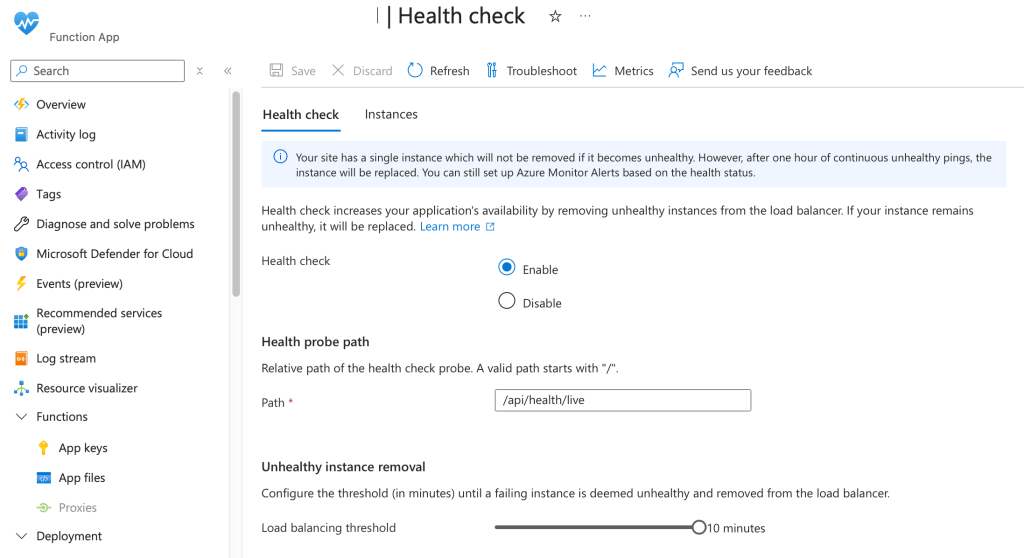
What we could do, is to split health checks into liveness checks and readiness checks. Liveness checks would just return 200 OK so that Azure App Service health checks have an endpoint for evaluating the service.

The readiness checks would do what my health checks do today, verify that the service has all the dependences required for it to work. I would connect my Availability Checks to the readiness so I get a monitor alarm if the service is not ready.

The health checks are using the new liveness endpoint that doesn’t verify the dependencies.
The availability check use the new ready endpoint to verify that all dependencies are up and running.

The type or namespace name ‘TableOutputAttribute’ could not be found

This compilation error was about to drive me crazy. I wanted to use the TableOutput attribute on my Azure Function, but I couldn’t figure out what package and using I needed.

StackOverflow is a mash of questions about Azure Functions in-process and isolated-process and at times there is a question for isolated-process and the answers are for in-process. It doesn’t help asking Copilot because it cannot figure it out either.

Apparently, Microsoft.Azure.Functions.Worker.Extensions.Storage used to have this attribute, but they have separated Azure Blobs, Queues and Tables into separate extensions since version 5.0.0.

So if you want to use TableOutput, you need to reference Microsoft.Azure.Functions.Worker.Extensions.Tables and after that you don’t really need any other using than

using Microsoft.Azure.Functions.Worker.Extensions;

Monitoring Dead-Letter Messages on Azure Service Bus

A weird limitation of the Azure Service Bus is the monitoring capabilities. It doesn’t seem to be connected to Log Analytics at all, and the few metrics you can get from Azure Portal are very coarse.

You can only monitor the total amount of dead-lettered messages in a whole queue or topic.

I’m getting a steady stream of dead-lettered messages in my application, and it’s not useful for me setting a boundary as I would need to increase it ever so often, but I do want an alert if the rate of dead-lettered messages accelerates. How would I do that?

First you need to get the metrics into Log Analytics so that you can run queries and projections on it. One way to do this is to create an Azure Function that will check your metrics at intervals and write them to Application Insights. Here’s an example.

public class TimerServiceBusMonitorFunction
{
    private readonly ILogger _logger;
    private readonly TelemetryClient _telemetryClient;
    private readonly ServiceBusAdministrationClient _serviceBusAdministrationClient;

    public TimerServiceBusMonitorFunction(ILogger<TimerServiceBusMonitorFunction> logger, TelemetryClient telemetryClient, ServiceBusAdministrationClient serviceBusAdministrationClient)
    {
        _logger = logger;
        _telemetryClient = telemetryClient;
        _serviceBusAdministrationClient = serviceBusAdministrationClient;
    }

    [Function("TimerServiceBusMonitor")]
    // trigger every minute
    public async Task Run([TimerTrigger("0 */1 * * * *")] object timerDeadLettersMonitor,
        CancellationToken cancellationToken = default
        )
    {
        _logger.LogInformation("START TimerServiceBusMonitor");

        // get all topics
        var topics = _serviceBusAdministrationClient.GetTopicsAsync(cancellationToken);

        await foreach (var topic in topics)
        {
            _logger.LogDebug("Get subscriptions for topic {topic}", topic.Name);

            // get the subscriptions
            var subscriptionsProperties = _serviceBusAdministrationClient.GetSubscriptionsRuntimePropertiesAsync(topic.Name, cancellationToken);

            await foreach (var subscriptionProperties in subscriptionsProperties)
            {
                _logger.LogDebug("Report metrics for subscription {subscription}", subscriptionProperties.SubscriptionName);

                _telemetryClient.TrackMetric("Mgmt.ServiceBus.DeadLetters", subscriptionProperties.DeadLetterMessageCount, new Dictionary<string, string> {
                    { "Topic", topic.Name },
                    { "Subscription", subscriptionProperties.SubscriptionName }
                });

                _telemetryClient.TrackMetric("Mgmt.ServiceBus.ActiveMessageCount", subscriptionProperties.ActiveMessageCount, new Dictionary<string, string> {
                    { "Topic", topic.Name },
                    { "Subscription", subscriptionProperties.SubscriptionName }
                });

                _telemetryClient.TrackMetric("Mgmt.ServiceBus.TotalMessageCount", subscriptionProperties.TotalMessageCount, new Dictionary<string, string> {
                    { "Topic", topic.Name },
                    { "Subscription", subscriptionProperties.SubscriptionName }
                });
            }
        }

        _logger.LogInformation("STOP TimerServiceBusMonitor");
    }
}

This function has a dependency to ServiceBusAdministrationClient which I setup in my Program.cs like this.

var host = new HostBuilder()
    .ConfigureFunctionsWorkerDefaults()
    .ConfigureServices(services => {
        services.AddAzureClients(cfg => {

            // get name of the service bus from environment variable
            var serviceBusName = Environment.GetEnvironmentVariable("SERVICE_BUS_NAME")
                ?? throw new InvalidOperationException("Missing configuration SERVICE_BUS_NAME required.");
            
            // get the user identity client id from environment variable, if it is not set, use the default azure credential
            var userIdentityClientID = Environment.GetEnvironmentVariable("SERVICE_BUS_USER_MANAGED_IDENTITY_ID");

            // add service bus administration client
            cfg.AddServiceBusAdministrationClientWithNamespace($"{serviceBusName}.servicebus.windows.net")
                .WithCredential(string.IsNullOrEmpty(userIdentityClientID) ? new DefaultAzureCredential() : new ManagedIdentityCredential(userIdentityClientID));
        });
    })
    .Build();

host.Run();

Once deployed to your environment this function will start tracking the metrics of your service bus every minute. In order to get how many dead letters are created every 5 minutes, I have written the following Kusto query.

customMetrics
| where name == 'Mgmt.ServiceBus.DeadLetters'
| extend Subscription = tostring(customDimensions.Subscription)
| extend Topic = tostring(customDimensions.Topic)
| order by timestamp asc
| summarize StartValue = min(value),
            EndValue = max(value) by Topic, Subscription, bin(timestamp, 10m)
| extend AverageRateOfChange = (EndValue - StartValue)
| project Subscription, timestamp, AverageRateOfChange

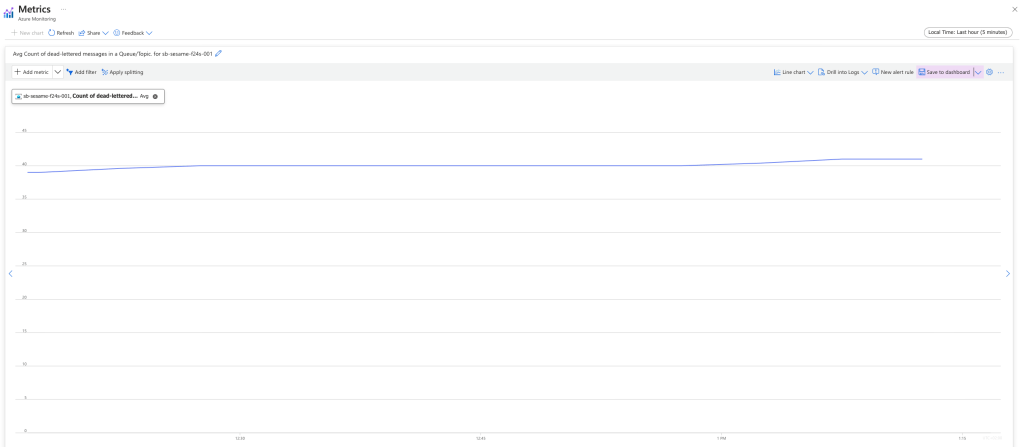
With this I get the following graph, and the ability to set an alert if the application generates dead letters above my threshold.

Instead of the built in graph of how many messages there are in a topic, we can now get a graph on how many messages are added to a subscription. This is useful for monitoring the rate of dead lettered messages.

Insights on setting up a Service Level Agreement

I have during January spent a lot of time thinking about, reading about and setting up a Service Level Agreement. The purpose is to agree on measurable metrics like uptime, responsiveness and responsibilities with your paying clients.

If it’s done right, it will influence how those clients prefer to interface to you. If they do it synchronously, asynchronously, put a cache in-between or have a failsafe.

Here I will write some general insights that I got from this process. If you want my complete SLA convention, you should check out my wiki. There I’ve also posted a sample SLA that you can reuse for your own purposes.

Always Start with Metrics

Before you dig into availability and 99.99999% you must start with metrics. What does availability mean to you? How do you measure it? What is an error? Is http status 404 an error? Does errors during maintenance count towards your metric? How is request latency measured? Is it measured on the client or the server? Do you measure the average on all the requests? How does a cold start latency affect your metric?

There are a lot of things to unpack before you can start thinking about objectives.

Should an 8 second cold start in the middle of the night affect you reaching your SLA objectives?

Not as Available as you Think

Everywhere you look businesses offer a 99,95% availability. Translated, it means 5 minutes and 2 seconds downtime weekly. A common misconception from developers is that it’s easy – All our deploys are automated anyway and if one fails, we’ll just rollback.

Before you set that objective you should consider

  • When the service goes down in the middle of the night, how much time does it take to wake somebody up to take look at the problem?
  • When the service goes down Saturday morning, do you have people working through the weekend to get the service up and running again?
  • Your availability is dependent on the availability of all the services you depend on. If you host on Azure Kubernetes which offers 99,95% availability, you cannot offer the same because Microsoft will eat up your whole failure budget.

Be kind to yourself. Don’t overpromise

  • Set an objective that promises availability within business hours, when you have developers awake that can work on the problem.
  • Pay people to be on-call when you need to offer availability off-hours.
  • Multiply availability of your dependent services with each other, and then with your own availability to reach a reasonable number. And then give yourself some slack. An objective should not be impossible or even challenging.
Azure Kubernetes = 99.95%
Azure MySQL = 99.9%
Azure API Management = 99.95%
My availability = 99%

Total Availability = 99.95% * 99.9% * 99.95% * 99% = 98.8%

Every Metric must be Measured

This sound so obvious, how can you know that you meet the objective unless you measure the metric? Still I rarely see anyone measuring their service level indicators. Maybe they don’t want to know.

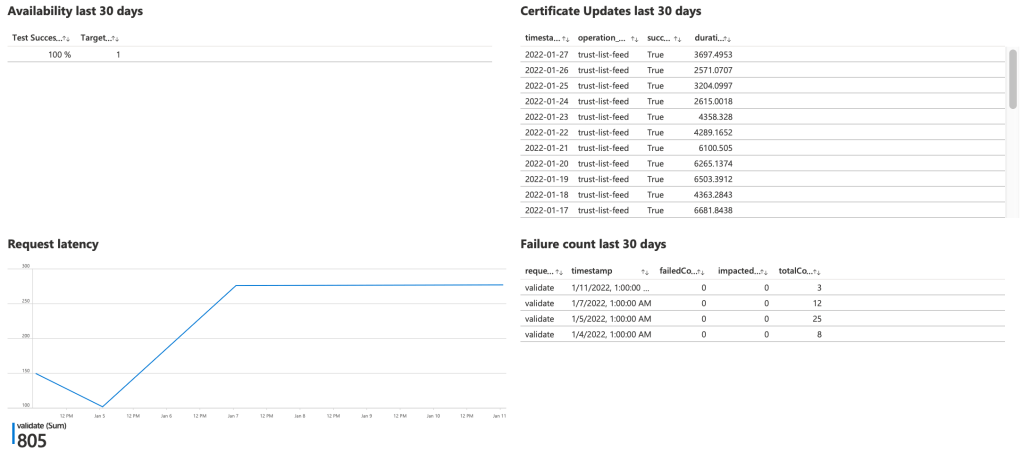
If you are using a cloud provider like Microsoft Azure, you can setup workbooks to measure your metrics. I’m a proponent of giving my clients access to these workbooks so they can see that we live up to the SLA.

A dashboard that is automatically updated with the metrics from our service license agreement.

The Client Also have Responsibilities

An agreement goes both ways, and in order for you as a vendor to fulfil your part of the agreement you need to put some requirements on the client.

  • Define a reasonable workload that the client is allowed to put on your service for the objectives to be obtainable. You can set a limit of 100 requests/second and refuse excess requests. Those errors do not count towards your error budget.
  • The client should be responsible for adjusting their service clients to updates in your API. You don’t want to maintain a 5 year old version of your system.

Reparations should Repair not Bankrupt

I’ve seen so many service license agreements that include a fine if the objectives are not met, and often those fines are quite high. They seldom define how often a client can request a payout, and together with badly defined objectives, a client could drive a service provider into bankruptcy.

That is not beneficial to anyone, so please stop writing SLAs with harsh penalties. You should try to repair and not bankrupt

  • How much damage was caused by the outage?
  • Can we update the service level objectives to become more reasonable?
  • Can the client adjust their use of our service to better fit our new objectives?
  • Is the client open to paying more so we can have a service technician on-call?

Summary

Writing an SLA is hard. It requires experience from both the legal team and IT operations. Availability is not an objective that a client can demand of your service. It must be negotiated and carefully weighed between IT operations environment, support organization and costs.

Bring Order to your Azure Account

I’ve had the benefit of stepping in to other developers’ Azure accounts, and it’s very much like opening up someones brain and taking a peek inside.

There are some bits ordered here and there, but it’s mostly chaos.

If it’s setup by someone with experience you will notice an intention of following conventions because they’ve seen first hand how quickly it gets out of hand. When there are more than one contributor, you will start noticing different patterns depending on which person set it up.

That is why it is so important to document a convention.

Why is it like this?

  • Most Azure resources are hard to move and rename. If you do something wrong you will need to delete and recreate the resource which often isn’t worth the trouble.

Here follows my convention. If you don’t like it, feel free to create your own. The most important thing is not how resources are named, but that the convention is followed so they’re named the same way.

Subscriptions

Microsoft will suggest you to put production and non-production resources into different subscriptions, in order to take advantage of Azure Dev/Test offer. I’m not in favour of this approach.

I want you to think about the subscription as “who gets the invoice?”. Not which department is going to bear the cost, but the actual invoice. Depending on your organization structure you need 1 subscription, or you’ll need 10.

It is not uncommon to have one financial department that will receive the invoice and split the costs on different cost units. It is also not uncommon to have 4 different legal entities and invoicing them separately.

If you as a consultant are doing work for a client that doesn’t have their own subscription, create a subscription for them. You will have all the costs neatly gathered, and you can easily hand it over when the project is done.

I have two subscriptions, one for each of my companies.

Resource Groups

I structure my resource groups like this.

Let’s unpack this a bit

  • Project Name, is the name of the application, project, website. I place this first, because when I’m searching for a resource group I will always start looking for the name of the application.
  • Component Name, is optional. Sometimes you don’t need it, but most of the time there are several components in a project. A web, an API, a BI component.
  • Environment, will be dev, test, stage or prod. I place different environments in different resource groups to make it easier to tear down one environment and rebuild another. It helps with keeping environments isolated and access control on the environment level.
  • Rg, to make it easier to recognise a resource group in az cli and other API scenarios.

A note on isolating environments. It drive cost up when you won’t share app service plans between dev and test. In my experience dev/test resources are cheap and it doesn’t cost much to duplicate them. The benefit of completely isolated environments is greater than the cost of split resources.

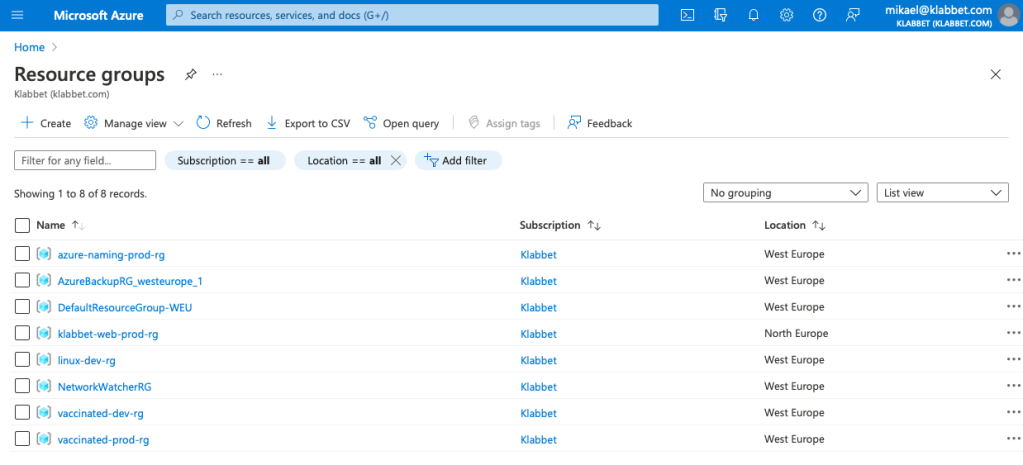
In my small Klabbet subscription it looks like this.

Sometimes Azure creates resource groups for you like AzureBackupRG_westeurope_1. Just leave it. It is not worth the trouble to change it for OCD purposes.

This scales well with hundreds of resource groups thanks to the filter functionality. Writing vaccinated in the filter box, will help me to quickly identify all resource groups belonging to that project.

Resource Names

Now we’ve made sure each resource group only contains resources for a specific application, component, environment. It will make the number of resources in each group much fewer and easier to overview.

I have a naming convention for azure resources as well. (looks very much like the previous one)

Project name, component name and environment in the resource name is useful for working with az cli and Azure APIs. The resource name abbreviation should be picked for the Microsoft recommended abbreviations. If your resource doesn’t have an official abbreviation, make your own and document it in your convention.

Don’t worry about Microsoft having special naming constraints, just remove the dashes for storage accounts.

Here’s what a resource group might look like.

Don’t worry about Azure creating resources that doesn’t follow your naming convention. That is fine.

Tagging

Tagging is often forgotten, even if you’re reminded every time you create a new resource. *hint* *hint* Tagging is extremely useful. Here are my standard tags that I put on all resources.

NameExampleComment
ApplicationVaccinatedBoss comes in and say: “I want to know exactly how much this project has cost us.” You filter cost analysis on the Application tag.
EnvironmentprodBeing able to split cost analysis on different environments is golden.
OrganizationKlabbetYou will always host only 1 organization within this subscription, until you’re not. When you’re going to create that first cost report, you’ll be glad that you did tag Organization from the start.

Other suggested tags “Business Unit”, “Component”, “Country” if you have an org with different departments, work on different components or is multi-national.

Tagging is for reporting, so make sure that you think of what your boss might come ask of you when you setup which tags are mandatory.

Now we can filter or group our expense reports on these tags.

Vaccinated was one failure of a project. How much should we blame marketing department for that!? Well 600 SEK worth!

Summary

This blog post has been going through my preferred way of getting order in my Azure account, making it easy to find things and tagging things to make reporting easier.

This might not be your preferred way, but it is has proven itself useful to me.